

For more than 20 years, I could work at a computer for eight to ten hours without thinking about the screen. Then I moved to a MacBook Pro with an M4 chip and a Mini-LED display. A month or two later, headaches, pressure behind my eyes, burning, dry and red eyes, fatigue, and trouble focusing or reading could start within an hour or two.
I eventually treated it like a production bug: what changed, which variable could I remove, and what happened if I went back to the last known-good setup? This is my first-hand account, not a diagnosis. Persistent eye symptoms deserve professional advice.
The delay made it easy to miss the connection. I would start a normal work session feeling fine, then notice the pressure and burning after an hour or two. I was used to forgetting about my screen, so this change was hard to ignore.
First, I ruled out the obvious
Eye doctors found no obvious vision problem that required glasses. One thought my eyes were sensitive and noticed how quickly my pupils changed, but no one identified a clear cause. Eye drops and rest did not fix it. At first, I blamed the weather, pollen, dry air, or too much work. The symptoms overlap with common digital eye discomfort, but that did not explain why they arrived so much sooner than before.
Debugging the display change
I switched back to my MacBook Air M1 and cut down my screen time. Over the next days and weeks, I gradually felt better. When I returned to the MacBook Pro, the symptoms came back within one to two hours; recovery sometimes took another day or two.
At first I changed two things at once: the laptop and my total screen time, so that gradual recovery could not tell me which mattered. Reintroducing the Pro was a clearer clue, though still not a lab test.
Then I tried to isolate the setup. With the same BenQ monitor, cable, and settings, the Air felt comfortable and the Pro brought back the symptoms. I tested the Pro with its lid open and in clamshell mode; neither changed the result. BetterDisplay and Stillcolor did not help. Around 50–70% brightness was more comfortable for me, while 100% was uncomfortable.
That comparison gave me a pattern, not a cause. I did not measure the signal going to the external monitor, so I cannot say what was happening there or attribute it to the Pro’s internal panel.
Independent display tests add context. Notebookcheck measured 14,880 Hz flicker on its 14-inch MacBook Pro M4 Pro review unit, including at full brightness. Its MacBook Air M1 review reported PWM around 118,000 Hz below roughly 49% brightness and a small 60 Hz variation above. Its tested MacBook Air M4 had no detected PWM flicker. These are specific review samples, not a predictor of how a display will feel to me.
The M1 result surprised me: the laptop I found comfortable still had PWM in Notebookcheck’s dimmer-setting measurements. That made it harder to turn my experience into a simple rule about which laptop or panel type to avoid.
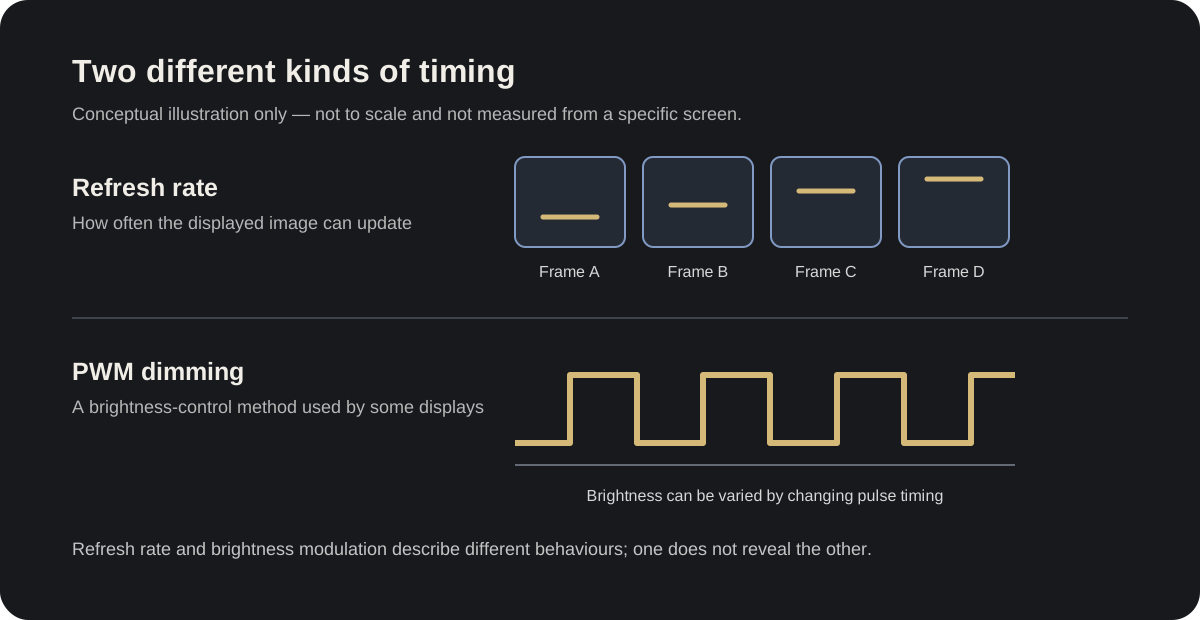
Refresh rate describes how often an image updates. PWM frequency describes how quickly some displays pulse brightness. They are separate behaviours: a 60 Hz or 120 Hz refresh rate does not tell me whether a display uses PWM. After the MacBook Pro problem began, that distinction mattered as I searched for PWM sensitivity, PWM flicker, and Mini-LED eye strain—and reconsidered an older experience with my iPhone 13.
PWM vs DC dimming
PWM dimming lowers perceived brightness by switching a display’s light output on and off very quickly. At a lower setting, the display can shorten the time each pulse is on, reducing the average light reaching your eyes. DC dimming lowers brightness by reducing the electrical current or drive level instead of relying on those rapid pulses.
Both methods control brightness; neither is automatically comfortable for everyone. Some displays combine PWM and DC dimming, or change how they work at different brightness levels. Even a display described as using DC dimming is not guaranteed to be completely flicker-free in every condition. I’d check measurements for the specific screen and brightness level, then judge it in my own setup rather than treating this as “DC good, PWM bad.”

Conceptual comparison only; actual dimming behaviour varies by display and brightness setting.
My iPhone 13 and OLED eye strain
I had not noticed this problem with the LCD iPhone SE (2nd generation) or iPhone 11. Years earlier, I had started feeling tired after about 20–30 minutes on the iPhone 13 OLED screen. At the time, I assumed it was simply because a phone has a small screen; I did not connect it with OLED or flicker. Only after the MacBook Pro experience did I revisit it while reading about iPhone PWM sensitivity. I can use the iPhone 13 now with a compromise.
The settings that helped me a little were high brightness with Reduce White Point adjusted to taste, Dark Mode, Auto-Brightness off, and Night Shift at night. True Tone, Reduce Motion, Increase Contrast, and Reduce Transparency did not help me.
Notebookcheck measured 610 Hz flicker on its iPhone 13 test unit; at the lowest brightness, its observed flicker disappeared after a slight increase. My experience was different, another reason I treat PWM eye strain as a possibility to investigate rather than a conclusion from one measurement.
Apple now documents Display Pulse Smoothing (PWM) under Settings → Accessibility → Display & Text Size. Its current support guide says the feature is available on supported models, may make dimming smoother at low brightness, and can affect low-brightness performance when PWM is disabled. Apple’s live compatibility list has the current models. I did not have this option while troubleshooting the iPhone 13, and I have not tested it myself.
The slow-motion camera clue
At about 50% brightness, I filmed my iPhone 13 in slow motion and saw bands. It gave me another clue to follow, but a phone camera is not a flicker meter: camera timing and rolling shutter affect the pattern. RTINGS uses a specialised photodiode to measure monitor flicker at different brightness levels. My camera could not tell me a precise PWM frequency or predict comfort.
Lighting and the screens I use now
At home, I now use warm, yellow, non-LED Philips bulbs. I think they may be halogen, but I have not confirmed the exact model or technology. In some office meeting rooms, I noticed similar discomfort after 30 minutes to a couple of hours around the lighting and television. That is what I noticed in those rooms, not a claim about all LED lighting.
My most comfortable monitor is the BenQ GW2490: IPS LCD, matte anti-glare, 100 Hz, with a manufacturer-listed Flicker-Free feature. I also use the MSI PRO MP273U, a 60 Hz IPS 4K display with anti-glare and a manufacturer-listed Anti-Flicker feature. Both work for me; the BenQ feels more comfortable. The panels differ in more than refresh rate, so I cannot credit 100 Hz alone. My current laptop is the MacBook Air M4, which I use with the BenQ.
What I check before buying a screen
- Look for a panel and finish I have tolerated; IPS LCD and matte anti-glare work for me.
- Check independent flicker measurements as well as manufacturer claims such as Flicker-Free or anti-flicker; I treat the label as a starting point, not a guarantee.
- Try the exact model at the brightness and room lighting I normally use. A brief look in a bright shop did not tell me how a screen would feel over a work session.
- If possible, borrow or buy from somewhere with a return window. My symptoms took time to show up, so I would want longer than a quick shop-floor glance.
- Treat slow-motion banding as a clue, not a measurement. Check refresh rate and PWM separately.
The production-bug approach never gave me a single root cause. It did help me find a setup I can work with: the MacBook Air M4, the BenQ GW2490, and warm lighting. That practical answer has mattered more than deciding that one display technology is always good or bad.
PWM sensitivity and OLED eye strain: quick answers
Does PWM cause eye strain?
I cannot tell from my experience alone. It gave me a reason to compare displays; it did not prove what caused the symptoms.
Is OLED always worse, or LCD always flicker-free?
No. Panel type does not predict individual comfort, and some LCDs also vary brightness. Check the specific display.
Is refresh rate the same as PWM frequency?
No. Refresh rate is about image updates; PWM frequency is about brightness pulses when that method is used.
Does turning brightness up remove PWM?
Not as a general rule. Notebookcheck saw different brightness behaviour on its iPhone 13 and MacBook Pro test units, and my Pro remained uncomfortable at 100%.
Why did the MacBook Air M1 feel comfortable if a review detected PWM?
The review measured one unit under set conditions; it did not measure my comfort. My own comparison is more useful to my setup than a single number, but it still does not identify a cause.
Why can two people react differently to the same display?
The display, brightness, lighting, workload, and person all matter. A lab measurement helps describe a screen; it cannot predict how comfortable it will feel to me.
Can slow-motion video confirm a screen is flicker-free?
No. It can show bands worth investigating, but it is not a scientific measurement or a comfort test.