
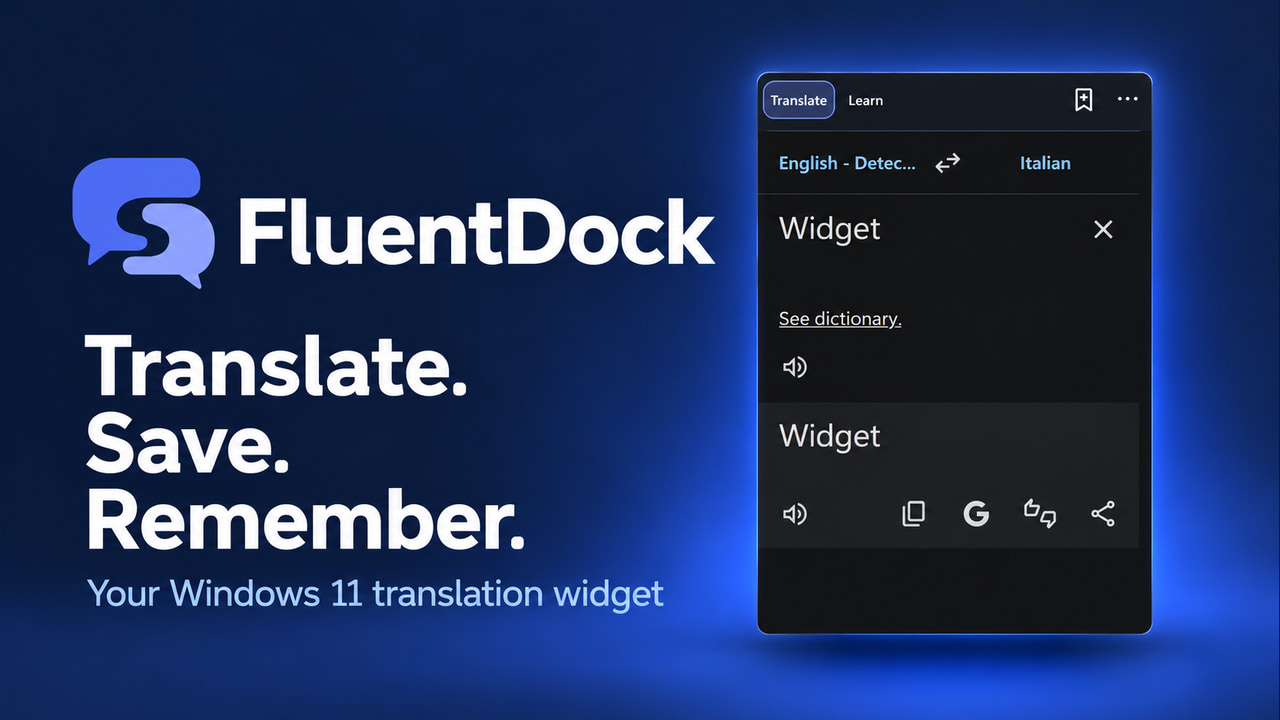
I kept translating words I had already looked up.
Google Translate or DeepL would give me the answer, I would carry on with what I was doing, and the word would slowly slip out of my head. The next time I needed it, I would start again.
Translation was easy. Remembering was the part I was missing.
That is why I built FluentDock, a small translation and vocabulary app for Windows 11 x64. I wanted somewhere to translate a word, save it and come back to it later - without making language practice another big task on my list.
If you want to see what I built, take a look at FluentDock and its screenshots.
Why I wanted a desktop translation widget
Opening a browser tab is not difficult. But when you do it repeatedly, even a small interruption becomes annoying.
I wanted translation to stay close to whatever I was working on. FluentDock sits in the Windows notification area and opens with a global keyboard shortcut. Its compact window can also be pinned to the desktop, kept above other windows and locked in position.
That makes it useful as a desktop translation widget while reading, writing or studying.
To be clear, it is a standalone Windows app, not an extension for the Windows Widgets panel.
Here is a short demo of FluentDock on Windows 11:
Google Translate and DeepL, without changing my habits
I was already using Google Translate and DeepL, so I did not want to build a new translation engine or ask people to learn an unfamiliar interface.
FluentDock brings those providers into a compact desktop translation app using Microsoft Edge WebView2. You choose your preferred provider and translate through its familiar interface.
The part I wanted to improve was what happened afterwards. Instead of leaving a useful translation behind in a browser tab, I could save it to my vocabulary library.
Translation still needs an internet connection. Google Translate or DeepL receives the text you translate, according to the selected provider’s privacy practices.
A place to save words I actually want to learn
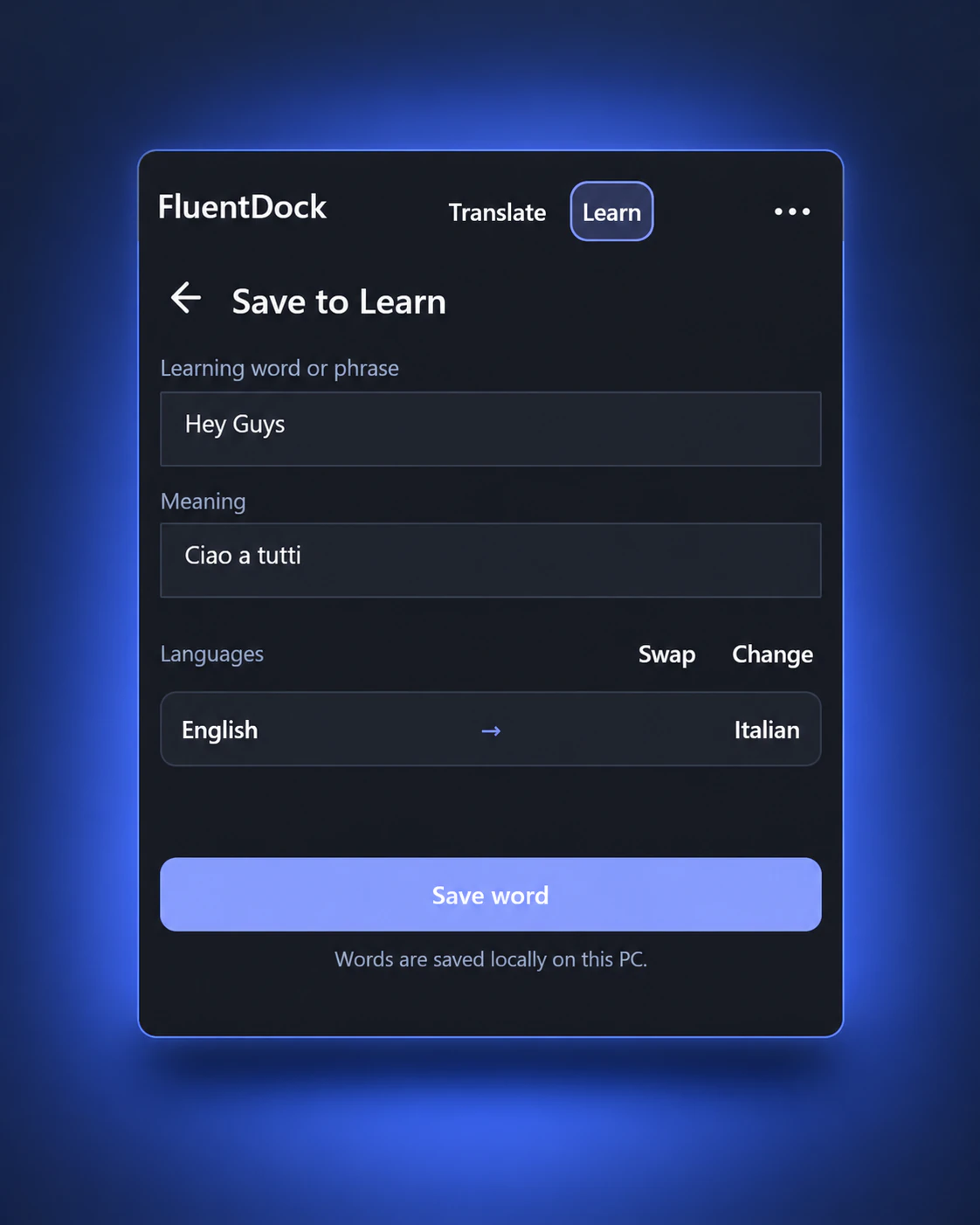
The Learn section is what makes FluentDock more than a translation shortcut for me.
You can save the original word or phrase, its translation and the language information. Saved vocabulary is searchable and editable, so it stays useful rather than becoming a list you never open again.
The library and learning progress are stored locally on your computer using SQLite.
I wanted this part to be straightforward: find something worth remembering, save it and know where to find it later.
Reviewing vocabulary instead of just collecting it
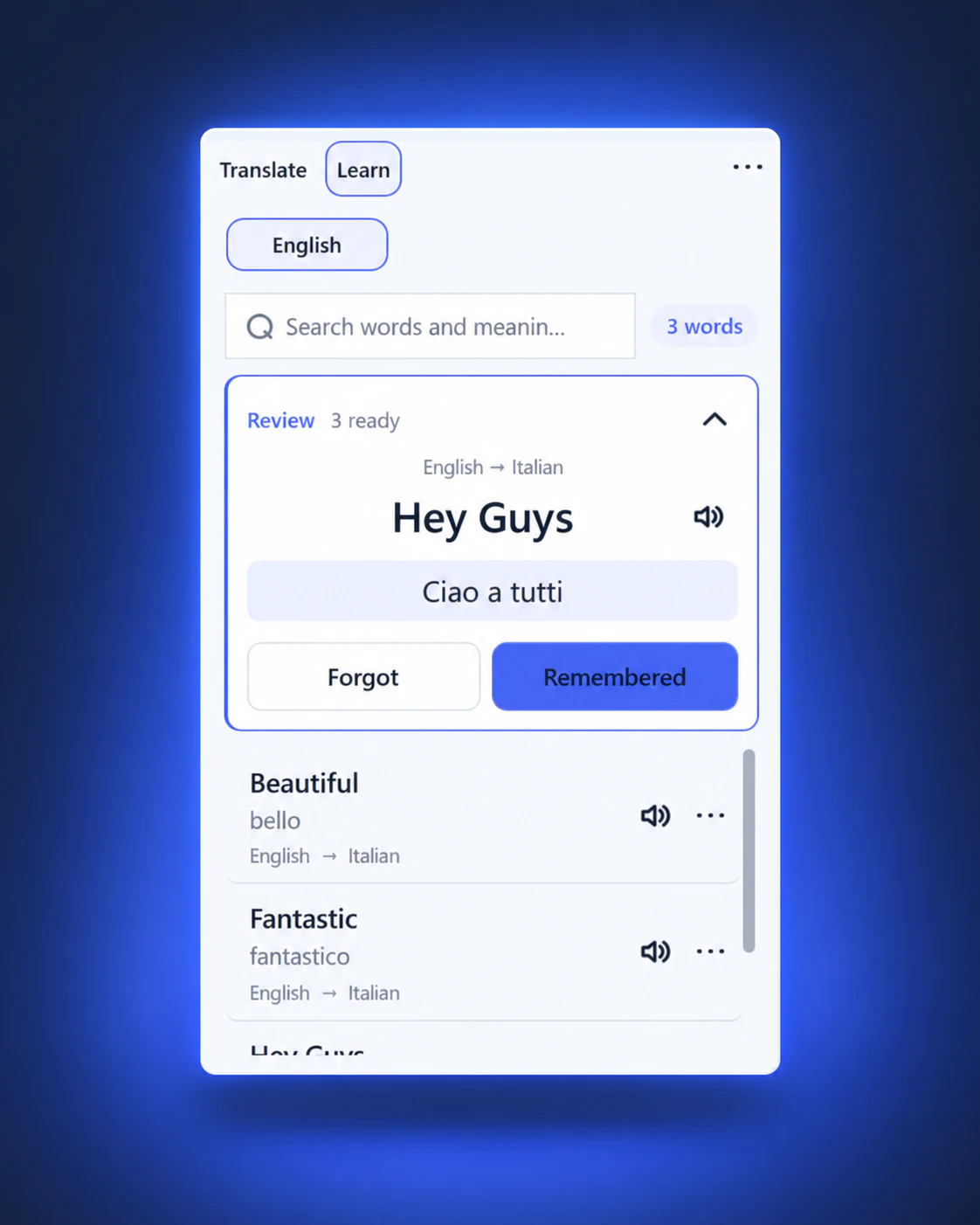
A saved word is not necessarily a learned word. I needed a reason to return to the library.
FluentDock includes scheduled vocabulary reviews. You try to recall a translation, then mark it as Remembered or Forgot. Your answer affects when the word comes back.
It is a simple spaced-review workflow, built around short moments of practice rather than long study sessions.
That matters to me because I wanted the app to fit around normal computer use. Looking up a word should be the beginning of learning it, not the end.
Pronunciation and reminders when I need them
FluentDock can pronounce saved vocabulary using voices installed in Windows. Pronunciation runs locally, although the available languages and voices depend on your Windows setup.
Optional vocabulary reminders help bring words back to your attention while FluentDock is running. You can adjust the reminder interval or leave reminders switched off.
I wanted these features to help, not compete for attention. Sometimes a reminder is useful; sometimes you just want a quiet app nearby.
How I built the Windows app
FluentDock is built with C#, .NET and WPF. WebView2 handles the embedded translation providers, SQLite stores the vocabulary library, and Windows speech services provide pronunciation.
Much of the work was in the details around that core:
- A configurable global keyboard shortcut
- Light, dark and automatic themes
- Desktop pinning and window-position controls
- Optional startup with Windows
- Vocabulary reviews, reminders and notifications
These are small things individually, but they shape whether an app feels comfortable to use every day.
FluentDock does not add its own usage telemetry. Settings and learning data stay local, while online translation remains a separate interaction with Google Translate or DeepL.
The app I wanted on my own desktop
I built FluentDock because I wanted to stop looking up the same words without making progress.
It is not a complete language course, and it does not try to be one. It is a Windows 11 translation widget with a vocabulary-learning workflow attached: translate something useful, save it, review it and give yourself a better chance of remembering it.
That is the small gap I wanted to fill.