
If you have a MacBook with a notch, you have probably wondered why that space cannot do more. BoringNotch is the original open-source macOS project, while BoringNotch+ is my separate enhanced fork that turns the notch into a compact productivity surface for music controls, reminders, clipboard history, focus sessions, and everyday widgets.
It also works on Macs without a physical notch by using the top menu bar area. If you want the current build, features, and download options, see BoringNotch+ on the apps page.
What is BoringNotch for Mac?
BoringNotch is an open-source macOS utility inspired by the idea of making the notch feel more useful instead of treating it as wasted space. It lives in the background and expands when you need it, giving you quick access to information and controls without opening a conventional app window.
BoringNotch+ is my enhanced fork of the original BoringNotch project by TheBoredTeam. It is not an official version of that project. The source for the fork is available on GitHub, while the ready-to-use signed build is distributed separately.
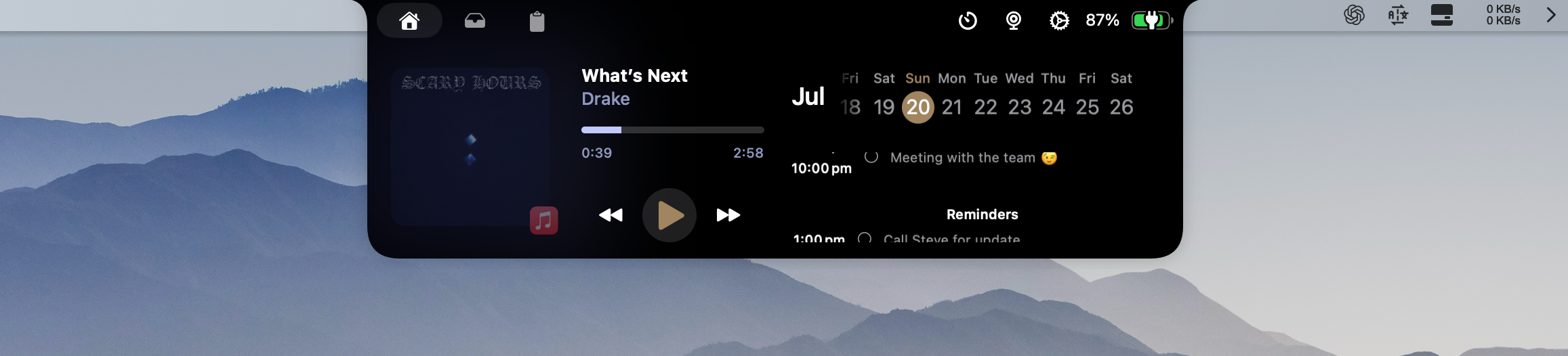
What BoringNotch+ adds
The original project provided a strong foundation. I extended it with features that make the notch useful throughout a normal workday rather than only when media is playing.
Apple Music and Spotify controls
The Now Playing surface shows the current track, artist, album artwork, and playback controls directly in the notch. You can check what is playing or control your music without switching away from the app you are using.
Reminders and tasks
Reminders and tasks bring small pieces of your day into the same glanceable surface. Instead of opening Calendar or Reminders for every quick check, you can see the next useful item where the notch already lives.
Clipboard 2.0
Clipboard history keeps recently copied items available inside the notch. The enhanced clipboard includes search, pinning, removal, and quick re-copy actions, making it easier to recover something you copied a few minutes ago without repeating the original workflow.
Pomodoro focus timer
The built-in Pomodoro timer supports focus and break phases, visual and audio feedback, and a compact countdown that stays close to the top of the screen. It is designed for focused work without requiring another timer window to remain open.

Weather, battery, calendar, and virtual pet widgets
The notch can also provide small everyday updates: weather, battery state, calendar information, and a virtual pet. These widgets keep the app playful while remaining useful during normal work.
Camera mirror toggle
The camera mirror feature gives you a quick preview before a video call. It is optional and can be enabled or disabled from the interface without restarting the app.
Here is a short demo of the current experience:
For the current release and support options, visit the BoringNotch+ app page.
Does BoringNotch work without a physical notch?
Yes. BoringNotch+ is designed for MacBooks with a physical notch, but it also supports Macs without one by using the top menu bar area. The same idea works in both cases: a small always-available surface for information and controls that does not need to become a full dashboard.
The layout also accounts for fullscreen apps, display changes, and the different safe-area constraints of notched and non-notched Macs.
Why I forked and extended BoringNotch
I was exploring Swift and SwiftUI and wanted to contribute to a real open-source macOS product rather than build another isolated demo. BoringNotch had a clear idea and an interesting interface constraint: make a narrow system area useful without making it feel crowded.
That made it a good project to learn from and improve. I added focused features such as Clipboard 2.0, the Pomodoro timer, the camera mirror toggle, performance improvements, and smoother UI behavior while keeping the original product direction intact.
The result is a separate enhanced fork, not a closed-source replacement for the original project. The source is available for people who want to study it or build it themselves; the ready-to-use signed and notarised DMG is a paid distribution that supports the testing, Apple Developer, signing, and release work behind it.
How it is built
BoringNotch+ is built with Swift and SwiftUI. The interface uses a borderless, always-on-top panel positioned from the display safe area rather than a conventional window with a dock icon.
That approach creates several engineering constraints:
- The panel must work around notched and non-notched display layouts.
- It needs to behave correctly when the active app enters fullscreen mode.
- Display changes and safe-area changes must not leave the panel in the wrong position.
- Widget state needs to update live without making the interface distracting.
- A narrow surface needs clear hierarchy so media, reminders, clipboard history, and focus tools do not compete for attention.
Working within those constraints made the project more interesting than simply adding features to a regular app window. The product is mostly about small interactions and transitions that make the notch feel like part of macOS instead of an overlay sitting on top of it.
Is BoringNotch safe?
BoringNotch and BoringNotch+ are open-source projects, so their code is available for inspection and independent builds. The current product information says BoringNotch+ does not collect personal data.
The camera is used only when you enable the mirror feature. You can turn that feature off or remove it from your workflow at any time. As with any app downloaded outside the Mac App Store, review the source, permissions, and release you are installing, and use the official project links.
How to handle the macOS Gatekeeper warning
BoringNotch+ is a separate enhanced fork. Its ready-to-use build is distributed as an Apple-signed trusted and notarised DMG through the BoringNotch+ app page, so it is not the same unsigned download described in the original project’s warning. Always verify the source and the permissions requested before installing.
The original Boring Notch project notes that its manually downloaded DMG may trigger an unidentified-developer(not Apple-signed) warning because it does not have an Apple Developer account. If macOS blocks it, use the project’s official installation instructions: try opening the app once, then go to System Settings → Privacy & Security → Open Anyway and confirm if prompted. The project also documents a Terminal option for users who prefer it.
Is BoringNotch free?
The original Boring Notch project is free and open source. BoringNotch+ is also available as source code for people who want to build it themselves, but the ready-to-use signed and notarised DMG is a paid distribution available through Gumroad.
It is a separate fork, not an official commercial release from TheBoredTeam. The current build and support options are available from the BoringNotch+ app page.
Does BoringNotch work on Apple Silicon?
Yes. BoringNotch+ supports Apple Silicon Macs, including the M1, M2, and M3 generations. It is also designed to work with Macs that do not have a physical notch, using the top menu bar area instead.
How to download and install BoringNotch on Mac
For BoringNotch+, start at the BoringNotch+ app page, where the current release information, demo, source link, and paid ready-to-use download option are kept together.
If you prefer to build from source, view the BoringNotchPlus GitHub repository and follow the project’s current build instructions. This keeps the article from pointing at an outdated release URL while giving both casual users and developers a clear way forward.
What I learned from the project
The most valuable lesson was that contributing to an existing open-source app requires a different kind of thinking from starting a new project. You need to understand the product’s existing behavior, preserve what already works, and add improvements without turning the interface into a collection of unrelated features.
The notch made those decisions visible. Every widget competes for a small amount of space, and every animation or panel expansion affects how the whole Mac feels. The best additions were the ones that solved a real workflow problem while respecting the original idea.
It was also a practical way to move deeper into Swift and SwiftUI: state management, constrained layouts, safe-area positioning, live widget updates, performance, and the work required to release an installable native Mac app.
Make your Mac notch useful
BoringNotch+ is for Mac users who want a more useful notch or menu bar without installing a large productivity dashboard. It brings together media controls, clipboard history, focus sessions, reminders, and small everyday widgets in a surface that stays close but out of the way.