
I speak four languages, so forgetting a word is a normal part of my day. Sometimes I know exactly what I want to say but cannot remember the word in the language I need. I wanted a faster way to translate without reaching for my phone, opening a browser tab, or breaking the flow of whatever I was doing.
That is why I built LingoMacBar: a lightweight Mac menu bar translator that keeps Google Translate and DeepL close at hand. Press Ctrl+;, translate what you need, and get back to work.
If you want to see the current app, screenshots, and download options, visit LingoMacBar on the apps page.
What is LingoMacBar?
LingoMacBar is a native macOS translation app that lives in the menu bar. It is designed for quick translations rather than long sessions inside a full translation workspace.
You can highlight text in another Mac app and translate it, or open the translator and type directly. The app supports both Google Translate and DeepL, with more than 100 languages available for everyday translation needs.
The purpose is simple: remove the copy, paste, browser-tab, and app-switching loop from translation.
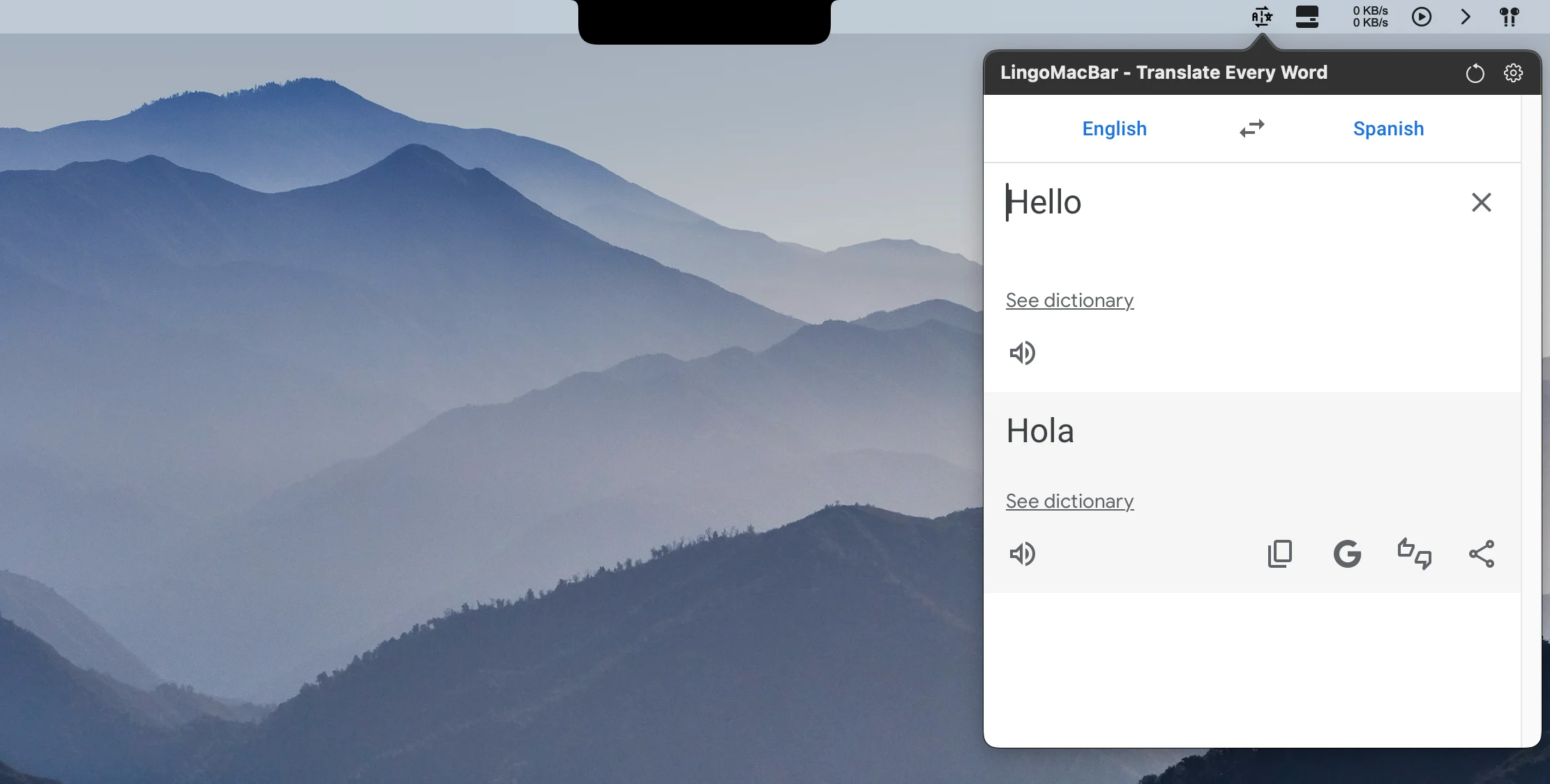
How the Mac menu bar translation workflow works
The workflow is intentionally short:
- Highlight a word, sentence, or paragraph in the app you are already using.
- Press
Ctrl+;to open LingoMacBar, or open it from the menu bar. - Use the auto-focused input if you want to type or edit the text.
- Choose Google Translate or DeepL and read the result without opening another window.
The global shortcut is useful when the source text is in a browser, document, code editor, email, or chat. You can keep your main app in focus and bring up the translation only when you need it.
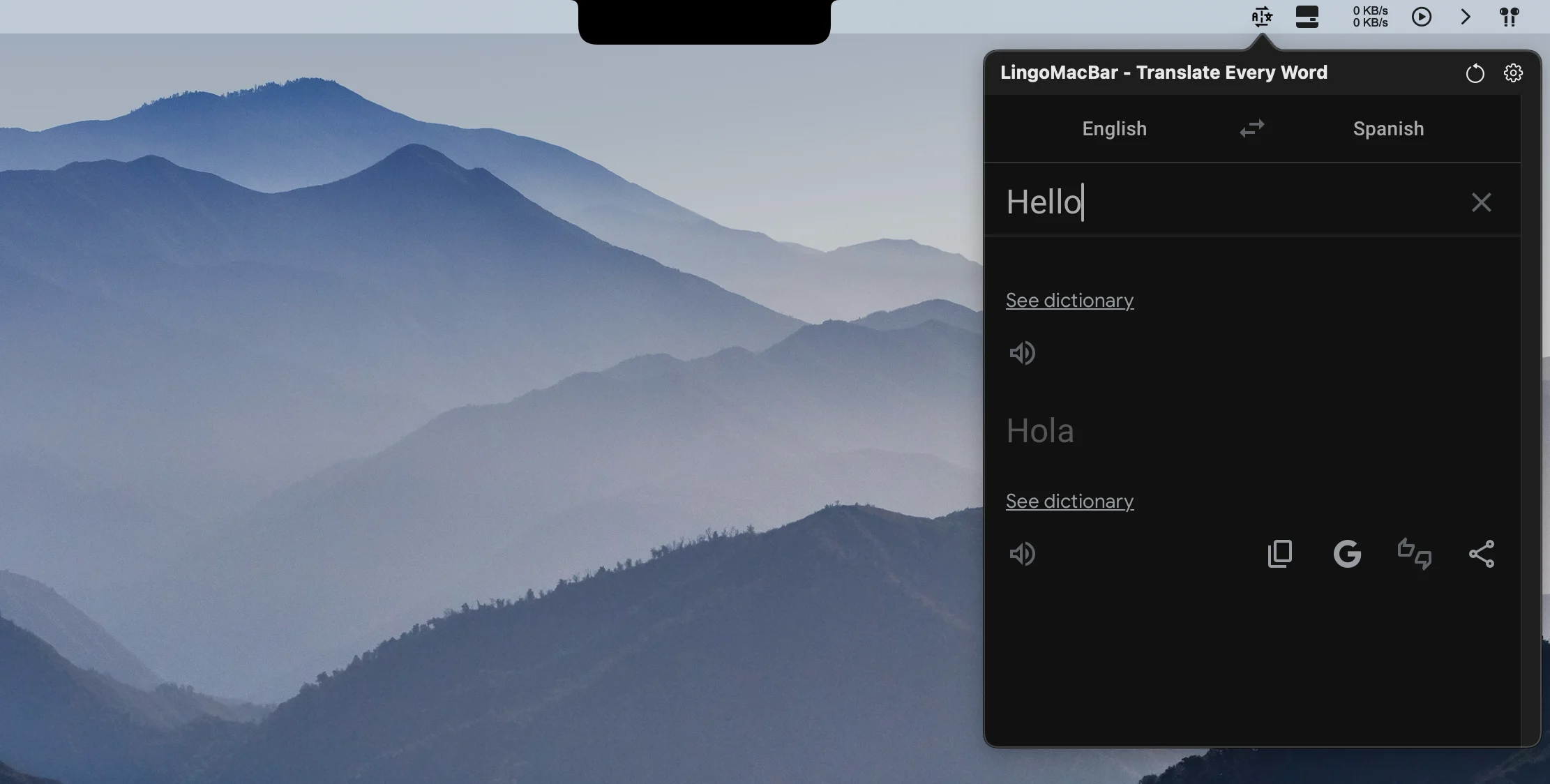
LingoMacBar features
Google Translate and DeepL
LingoMacBar gives you two translation providers in one small Mac utility. You can choose the provider that fits the sentence, language pair, or type of writing you are working with.
Translate selected text on Mac
Selected-text translation is the fastest path when you are reading documentation, writing, chatting, or working across languages. Instead of copying text into a browser, use the shortcut and keep the translation close to the source.
More than 100 languages
The app supports more than 100 languages for everyday translation tasks. It is useful for quick words and phrases, but also for reading documentation, checking messages, and drafting multilingual content.
Global keyboard shortcut
The Ctrl+; shortcut makes LingoMacBar available from almost anywhere. You can also open it directly from the menu bar when a shortcut is not convenient.
Auto-focused input and translation history
When the translator opens, the input is ready for typing. Recent translations remain available in the compact popover, so you can return to a phrase without repeating the same lookup.
Auto, Light, and Dark themes
LingoMacBar can follow the system appearance or use a fixed Light or Dark theme. The goal is for the translator to feel like a small part of macOS rather than an unrelated web page floating above it.
Building a native macOS translation app
I designed and shipped LingoMacBar in Swift and SwiftUI with MenuBarExtra. The app looks small from the outside, but the interaction depends on several macOS platform details.
The global shortcut uses Carbon’s RegisterEventHotKey path. To translate selected text, the app uses the macOS accessibility API and handles the cases where another application does not expose a usable selection.
Translation content is provided by Google Translate and DeepL inside a focused WebView. This keeps the app lightweight and lets the providers handle their own translation interfaces, while also meaning that provider changes can occasionally affect the visual layer.
The interesting engineering work is in the handoff between those pieces: opening quickly, placing focus in the right field, retrieving selected text when it is available, and falling back gracefully when an app does not provide it.
What about read-aloud translation?
LingoMacBar can read translated words aloud, which is useful when you are learning a language or checking pronunciation. The feature works, but it can occasionally fail or behave inconsistently because the speech behavior depends on the Google-backed translation experience.
That is an important distinction: the occasional failure is related to the provider layer rather than the menu bar workflow itself. I would rather describe that honestly than promise a perfect offline pronunciation engine.
Privacy and offline behavior
LingoMacBar does not require an account, use cloud sync, or track you through the app. It is designed to stay small and focused on the Mac.
An internet connection is required because translations are handled through Google Translate and DeepL. When you translate text, the relevant request is processed by the provider you select. LingoMacBar does not turn that workflow into a separate account or sync system.
Who is LingoMacBar for?
LingoMacBar is useful for anyone who works across languages or wants translation available without interrupting their workflow:
- Developers reading documentation or translating code comments.
- Students working on multilingual assignments.
- Writers and content creators drafting in more than one language.
- Remote workers communicating with international teams.
- Travelers checking a phrase quickly.
- Multilingual users who occasionally forget a word, just like I do.
Frequently asked questions about Mac translation apps
What is the best translate bar for Mac?
The best Mac translate bar depends on how you work. If you want a lightweight menu bar utility with a global shortcut, selected-text translation, and both Google Translate and DeepL, LingoMacBar is designed for that workflow.
Can I translate selected text on Mac?
Yes. Highlight text in a supported Mac app and press Ctrl+; to open LingoMacBar. If an app does not expose its selection through the macOS accessibility API, you can still open the translator and type or paste the text manually.
Does macOS have a built-in menu bar translator?
macOS includes translation features in some system experiences, but it does not provide the same dedicated menu bar workflow with a global shortcut, provider choice, and recent translation popover. LingoMacBar is built for that focused use case.
Does LingoMacBar work offline?
No. An internet connection is required because LingoMacBar uses Google Translate and DeepL for translation.
Does LingoMacBar support Google Translate and DeepL?
Yes. Both providers are available inside the app, so you can choose the translation service you prefer for the task at hand.
What shortcut opens LingoMacBar?
The default shortcut is Ctrl+;. You can also open the translator directly from the Mac menu bar.
A small translator for a real daily problem
I did not set out to build another large translation workspace. I wanted a fast answer when a word disappeared from my memory, without interrupting the work around it.
That constraint shaped the product: a global shortcut, a focused popover, provider choice, selected-text retrieval, and just enough history to make repeated translation less annoying. It also gave me a practical native macOS project where the details—accessibility APIs, global hotkeys, WebViews, and focus—matter as much as the visible interface.